
Scheduler
Some work has to happen at a set time: a check every weekday at 9:00, a report on Mondays, a ping every five minutes. A job of the Scheduler does it: it runs a workflow, adds a task to a board or runs a program, and keeps every run.
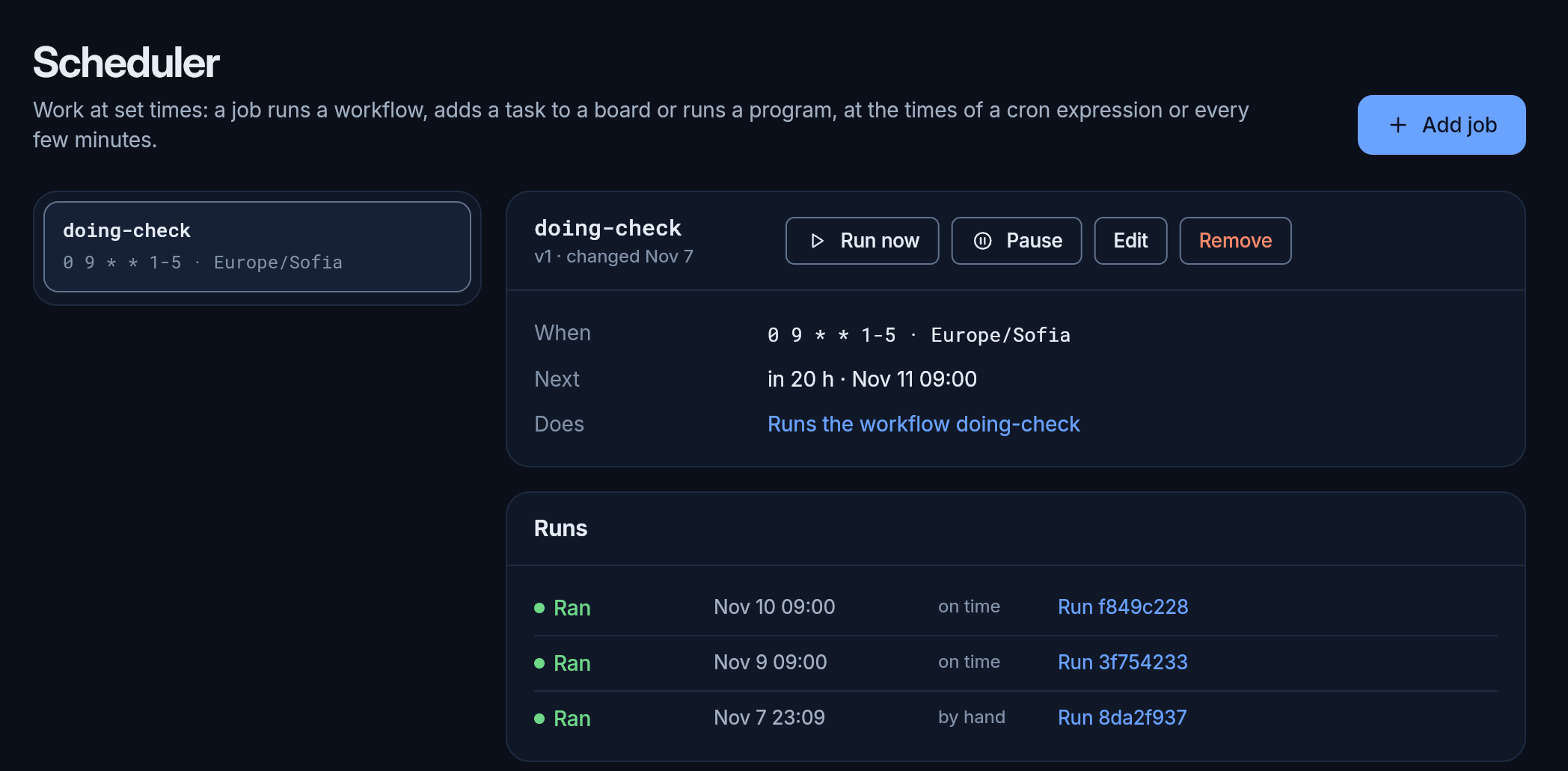
The page shows when the Scheduler module is on (All modules). On the left are the jobs, each with when it runs and whether it is paused; on the right is the job you picked.
What a job does
Section titled “What a job does”One of three things:
- Runs a workflow whose trigger is a schedule. Each run opens the workflow’s run, with its steps. The workflow still runs only with the grants a person approved.
- Adds a task to a board, with its title, its text and an assignee. A team member assigned to it is woken as for any task, and its answer is its comment: this is how an agent does a daily report. A run adds its task once, even if it is retried.
- Runs a program, in the sandbox, with the Scheduler’s grants and a time limit. Its exit code and the end of its output are kept with the run.
When it runs
Section titled “When it runs”- At set times: a cron expression, the five fields minute, hour, day, month and weekday, in a time zone of your choice (UTC when you leave it empty). The form shows an example for every weekday at 9:00.
- Every few minutes: at least one.
Next shows when it runs next, in how long and at what time.
Add a job
Section titled “Add a job”- Add job.
- Give it a name: 1 to 64 of a-z, 0-9 and
-. - Choose when it runs and what it does. For a workflow, pick it from the list; for a task, the board, the title, the text and the assignee; for a program, its name or path and its arguments.
- Save. The Scheduler checks the job, and the form says what is wrong when something is.
A job can also be added from the workflow it runs: in the editor, a schedule trigger lists its jobs, with the next run and whether each is paused, and adds one. The builder adds the job itself when you ask it for a workflow that runs at set times.
Change, pause, run now
Section titled “Change, pause, run now”- Edit changes when it runs or what it does. Each save is a new version. When someone else saved while you were editing, the form says so, and saving then writes over their version.
- Pause stops it from running at its times; Go on starts it again. A paused job still runs when you run it now.
- Run now runs it once, at once. The run is marked by hand.
- Remove stops it for good. Its runs are kept.
Each run shows its outcome, when it started, whether it ran on time or by hand, and what it made: the workflow’s run, or the task it added. A program’s run shows its exit code and its output instead.
- Ran: it did its work.
- Failed: the work failed; the run says why.
- Skipped: it was due while its previous run was still going. A job runs once at a time.
When the server was down at a job’s time, the job runs once when it is back, for its latest time, not once for every time it missed.
The Scheduler’s tools, for your agents and scripts: scheduler module.